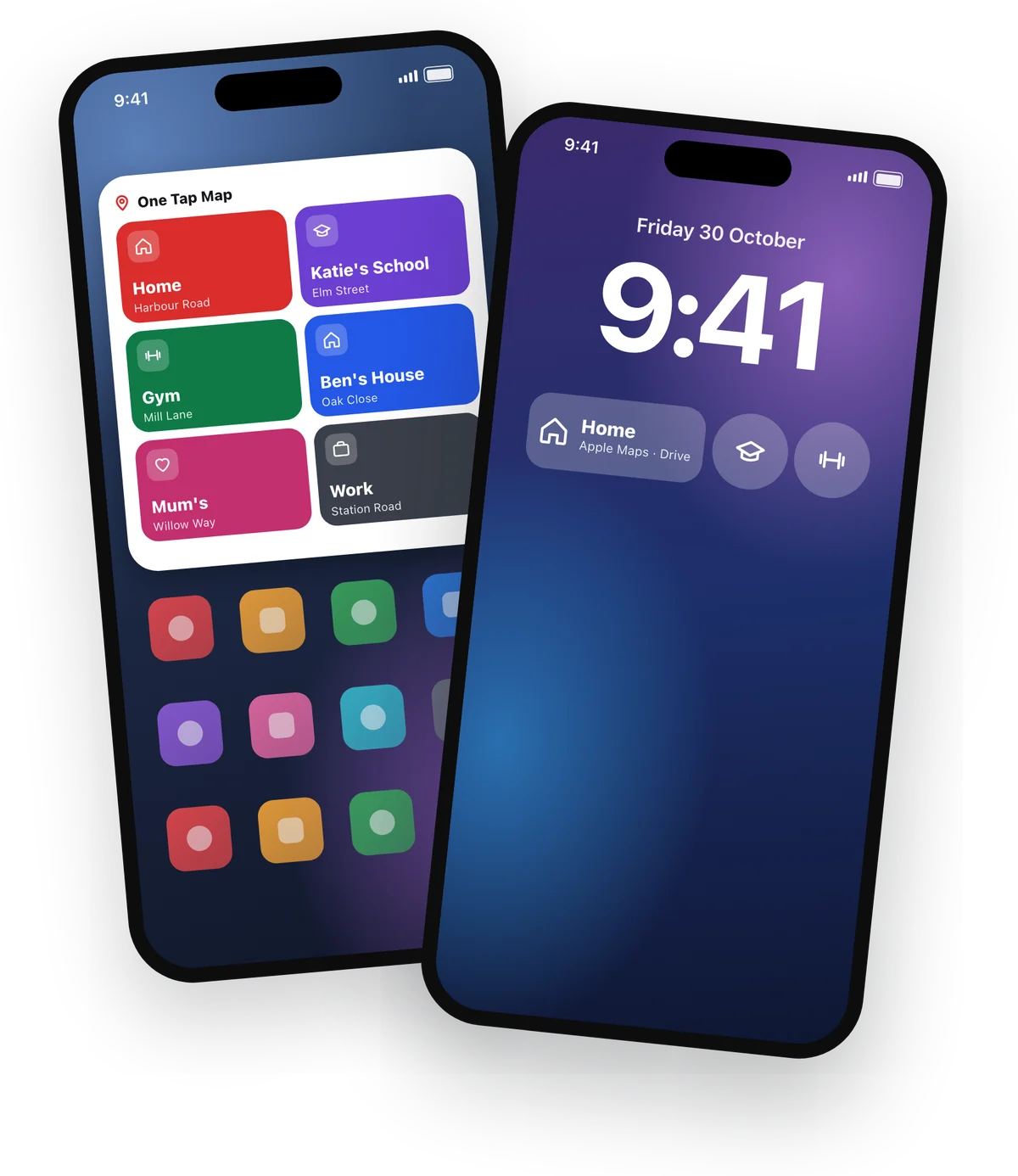
Home Screen and Lock Screen widgets for iPhone
The widget your map should have shipped with.
Tap a widget and directions start in Waze, Google Maps or Apple Maps.

On a computer? Scan with your iPhone.
Free for 2 places. No subscription, no account.
Home Screen and Lock Screen widgets for iPhone
Tap a widget and directions start in Waze, Google Maps or Apple Maps.
Free for 2 places. No subscription, no account.
Tapping a place on a widget starts directions in your map app.
The old way
Tap Gym. You're on your way.
"I'd set off, then realise I hadn't started directions. Then I'd have to pull over, or dangerously try to set them up on the move.
I built One Tap Map to be the solution."
Set it up once
Choose the app, the entrance and the route once. Every tap after that just goes.


 Waze
 Apple Maps
 Google Maps
One default for everything, or a different app for any place.
Drag the pin to the gate, lobby or car park you actually use. Every tap goes there, not to the address.
Walk to the gym, drive to the office. Waze is for driving, so it always drives.
Keep toll roads out of the trips where you never pay a toll. Works in Apple Maps and Waze.
Widgets
On your Home Screen and your Lock Screen, in your own colours. You'll barely open the app.
Nothing to refresh, nothing to go out of date. A widget is a door, and it always opens.
Why not just use your map app?
| Feature | Favourites in your map app | A Shortcut you build | One Tap Map |
|---|---|---|---|
| One tap from the Home Screen and Lock Screen | No: open the app first | Yes, once you build it | Yes |
| Works with Waze, Google Maps and Apple Maps | Only inside that one app | If you set each one up | All three |
| A different app for each place | No | One Shortcut per place | Yes |
| The exact entrance | Sometimes | If you enter coordinates | Drag the pin |
| Avoid tolls on chosen trips | One setting for every trip | Rarely | Per place |
| Set-up time | Already there | A while | Seconds |
Privacy
They sync only through your own iCloud. No account, and nobody sees where you go.
Read the privacy policy"Why do I need directions for my regular routes?"
Directions aren't only for finding the way. They warn you about the crash on the main road and the lane closed for roadworks, and find you the faster way round.
Yes. Waze, Google Maps and Apple Maps. Choose one default, or a different app for each place.
No. Tap your place before you set off and directions are already running when you pull away.
No. There is nothing to sign up for. Your places stay on your iPhone and sync through your own iCloud.
No. Two places are free for good. One purchase adds as many places as you like, and options such as a different map app for each place.
Your places come back through iCloud when you sign in with the same Apple Account.
Free for 2 places. No subscription, no account.